There are various reasons why you may need to change your SOLIDWORKS serial number, for instance, if you need to:
- Switch to another SOLIDWORKS Standalone, Professional or Premium license.
- Change from a standalone license to a network-based license, or vice versa.
- Replace a term license that has expired with a renewed license.
Whatever the reason may be, you can change a SOLIDWORKS serial number directly through the SOLIDWORKS Installation Manager. You do not need to uninstall or reinstall SOLIDWORKS. Follow our step-by-step guide below to see how:
|
Deactivate your license by opening SOLIDWORKS, then go to Help > Licenses Deactivate (NOTE: this step is not required if you are changing from a network-based license to a standalone license, please skip to step 4 instead).
|
|

|
 |
|
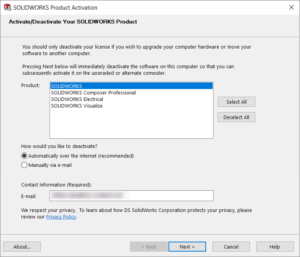
Select the products you would like to deactivate > choose the ‘Automatically over the internet (recommended)’ option > enter your email address then press Next to complete the deactivation.
|
|
After a few moments you should see the ‘Deactivation succeeded’ screen and you can click Finish.
|
|

|
|
****Close SOLIDWORKS****
|
 |
|
Type ‘Add or remove’ into your Windows search bar and open the ‘Add or remove programs’ system settings.
|
|
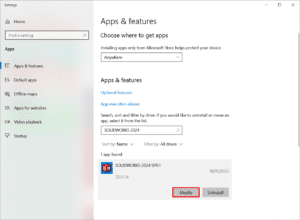
Find SOLIDWORKS in the list of apps, select the latest version installed, and click Modify to open the SOLIDWORKS Installation Manager.
|
|
|
 |
|
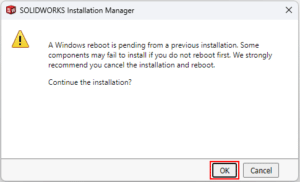
If you see message about a pending Windows reboot, you can click OK to dismiss it and continue.
|
|
Select the ‘Modify your installation’ option and press Next
|
|

|
 |
|
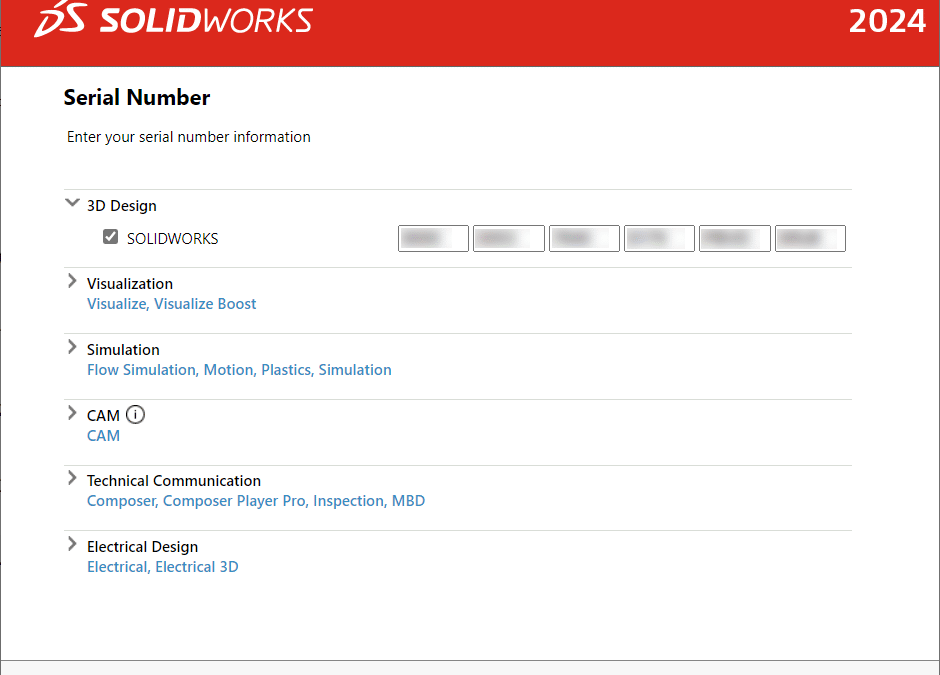
Change your serial number as required on the Serial Number page then press Next.
|
|
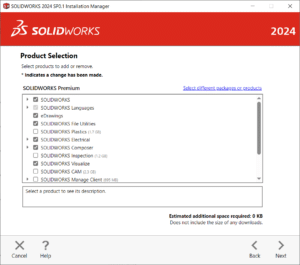
If you added any additional serial numbers/products, you can choose to install them in the Product Selection page. Otherwise, press Next to continue.
|
|
|
 |
|
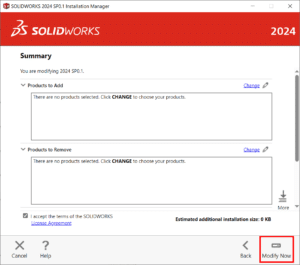
Click Modify Now to complete the change.
|
|
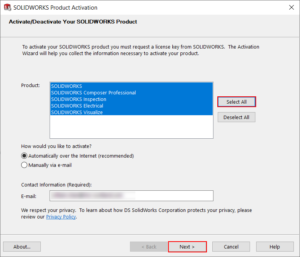
Open SOLIDWORKS to activate your license. You can press Select all to activate all your licenses > choose the ‘Automatically over the internet (recommended)’ option > enter your email then press Next to complete the activation.
|
|
|
You should then see the ‘Activation/Reactivation succeeded’ window, which means the serial number change has been completed.
********
If you require any assistance with this process, please email us at SOLIDWORKS.support@tms-scotland.com or use our Customer Support Portal to open a support ticket.

Recent Comments